How any tool works
Every tool of the sketch, the part and the assembly is taken, set and applied the same way. What you learn on one works on all of them.
Taking a tool
- Press its button on the left, its key, or find it with Ctrl+K. The bar of the tool appears at the top: its name, its modes and switches, and on the right Apply (Enter) and Cancel (Esc).
- What you selected before is taken at once. Select the edges first and then press the fillet — the fillet takes those edges and opens its value. With nothing selected, the tool waits: the bar and the status line say what to point at.
- The key of the tool pressed again puts it down.
Setting the values — the box at the geometry
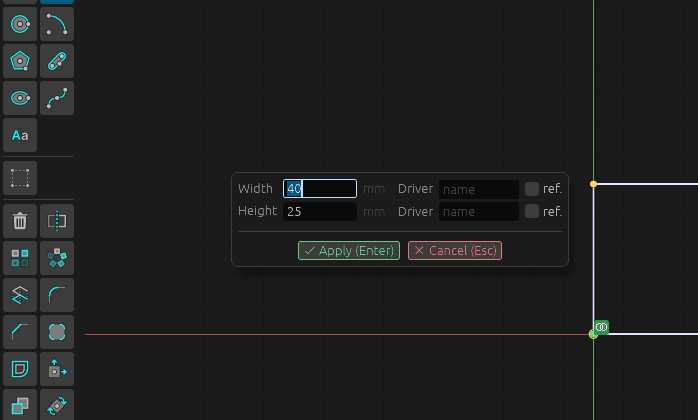
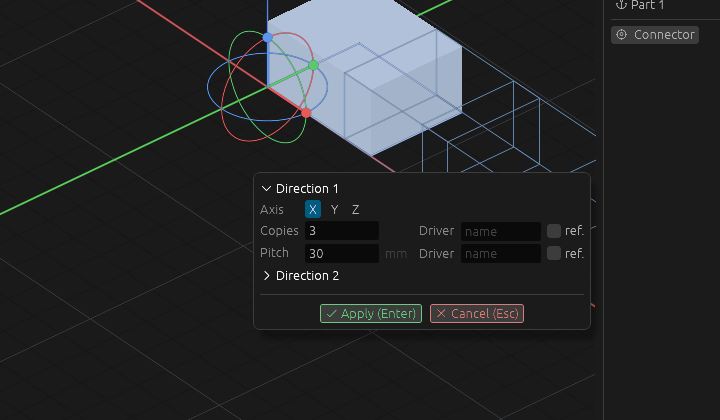
The numbers of a tool stand in a box right by what they size: the length of an extrusion by its arrow, the width of a rectangle by the rectangle, the directions of a pattern by the part.
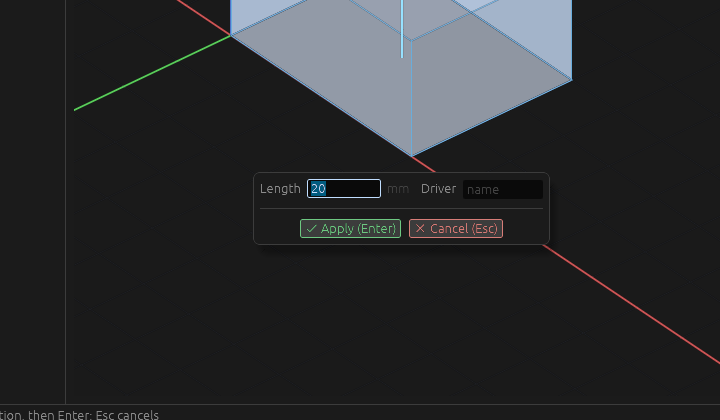
- Type a number, or a formula:
40/2,w*2,w+5. A formula keeps its parameter: changewin ƒx Parameters and the size follows. - Tab goes to the next field, Shift+Tab back; the value of a field is selected as you come to it, so typing replaces it.
- Next to a value — Driver: type a name there, and other formulas can read this value by it.
- ref. makes a size a reference: it shows what the geometry measures and holds nothing.
- A value the field cannot take — a broken formula, zero where zero is no size, past its limits — keeps the old value, and the field says why in words under it. Enter is not taken until the value is mended.
- The geometry follows what you type at once, as a preview. The document takes it only with Enter.
A box with more than one piece of sense has sections, as a pattern has its directions: the first direction is open, the second opens — and is switched on — by a click on its title.
Applying and cancelling
- Enter or Apply — the work is done, as one step of undo. A drawing tool — a line, a rectangle, a dimension, a fillet of a sketch — stays in hand for the next one; a tool that does one thing — an operation of a part, a joint, a pattern, a turn — gives the hand back to the selection.
- Esc or Cancel — nothing is left of it. In a field the first Esc leaves the field, the next one cancels the tool.
- The box can be moved by its edge if it stands over what you want to see.
Changing it later
A double click on the row of the operation in the tree — or on the shape in a sketch — opens the same box with the same fields, the formulas as you typed them.
If it does not work
- Enter does nothing — read the line under the fields and the status line: they say what is missing (a pick, a value the field cannot take). Mend that and press Enter again.
- The tool does not take what you selected — the selection was of another kind (a face where edges are wanted). Press Esc, select what the bar asks for and take the tool again.
- A formula is refused — a name in it is not a parameter or a driver of the document, or it comes back to this very value. Check the names in ƒx Parameters.