Assembly: an overview
An assembly places parts against each other. A part stays itself: it keeps its own history, its own sketches and its own single body — the assembly only says where it stands and how it moves.
Components
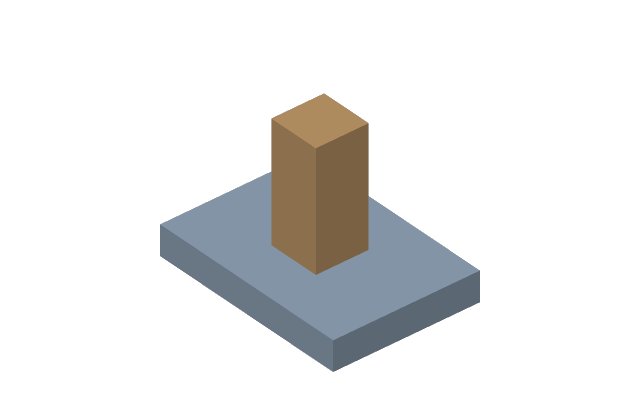
The assembly tree is made of components: parts and sub-assemblies. A double click goes inside a component, and from there you work with it like an ordinary part; the path on top shows where you are.
Joints
Position is set by joints, rules between parts, rather than by coordinates:
- Rigid — the parts are tied solid, zero degrees of freedom.
- Revolute — one axis of rotation: a hinge, a pulley.
- Slider — one translation along an axis.
- Cylindrical — rotation and translation along the same axis: a shaft in a plain bearing.
- Planar — two translations in a plane and a rotation in it: a part lying on a table.
- Ball — three rotations about a point.
- Pin-slot — rotation about one axis and translation along another.
- Parallel — holds the direction only; where the part sits is its own business.
A joint's anchor is inferred under the cursor: the middle of a face gives its centre, an edge its midpoint, a circular rim the hole centre, an edge end a vertex. You do not declare in advance what you are about to pick.
The parts are placed so that all joints hold at once. The properties of a joint show how many degrees of freedom the driven part has left, and if the joints ask something incompatible, the program says that they conflict.
Patterns, mirrors and clones
A row of bolts is placed by a component pattern — one row of the assembly timeline. The left bracket from the right one is a Mirrored copy of the part. Make a clone (the right button on the part in the tree) places the same part once more: editing the original changes the clone too, while it stands and mates on its own.
Interference check
A separate check shows where parts run into each other. On an assembly built from joints this is the first thing worth looking at before release.
Top-down design
One part's sketch can stand on another part's face — then an explicit external reference appears between them. That is how a bracket's dimensions come from the housing instead of being retyped into it. The reference shows in the properties of the part and can be broken — more.
The buttons of the bar
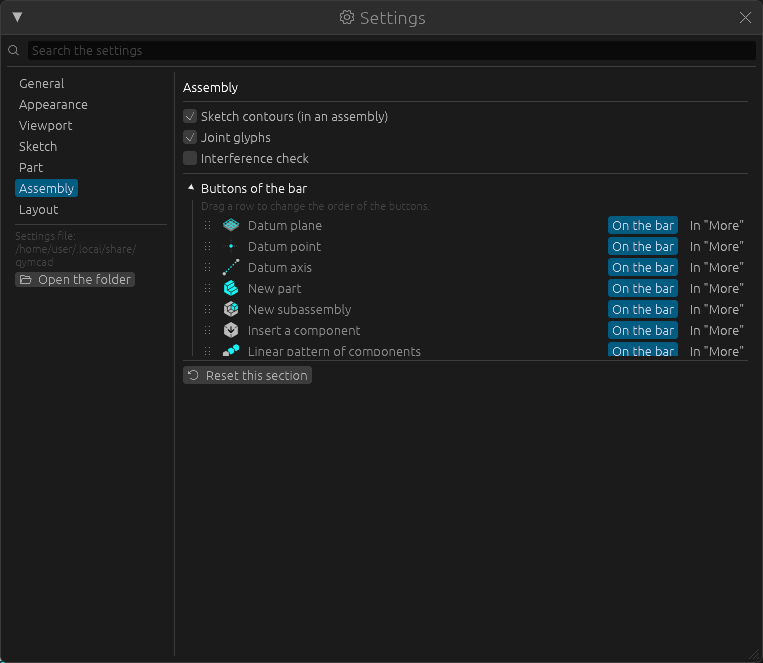
Which buttons stand on the bar of this workbench and in what order is set in Windows -> Settings -> Assembly: press the heading Buttons of the bar, drag a row up or down to move its button, press In "More" to take it off the bar. Restore the standard buttons brings the usual set back. More in The layout of the panels.