Interference check
Shows where the parts of an assembly go into each other — take up the same volume.
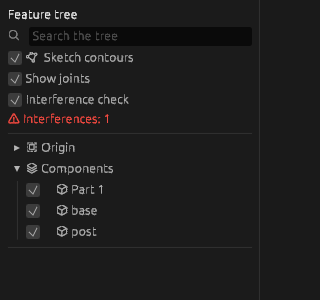
How to turn it on
In an assembly, tick Interference check in the tree. The bodies of parts that go into each other turn red in the view, and a red line Interferences: N appears under the tick box — how many pairs of parts overlap. The check runs by itself after every edit while the box is ticked.
Parts that only touch with their faces do not count as overlapping: they share no volume.
What counts as an error
Not every overlap is an error. A threaded joint, an interference fit, a press fit are overlaps in the model. The check does not state the size of the overlap: to tell a fit of hundredths from an assembly error of five millimetres, turn on a View section through the place or measure the distance between the faces.
When to check
Before a release and after every larger edit — especially after editing joints: a part that shifted by a couple of millimetres cannot be seen, and the check shows it.
If it did not work
- There is no tick box — you are inside a part. Step out to the assembly: the check runs between parts.
- No line appears although the parts clearly go into each other — wait: the check needs the exact geometry of the parts, and on a large assembly it takes a few seconds to prepare.