Settings
The settings window is split into sections; above them is a search that finds a setting by its label.
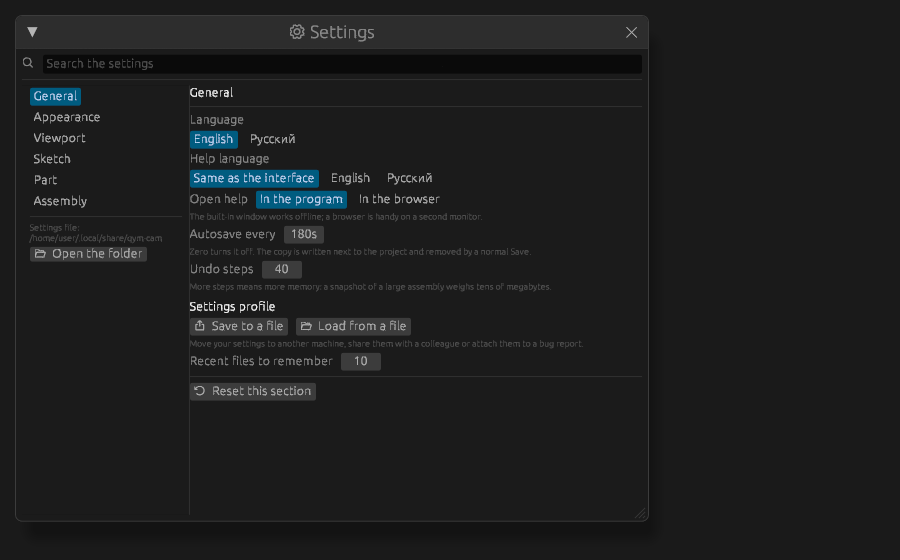
- General — language of the program and of the help, how to open the help, the start screen and the last project, units on import, autosave, undo depth, how many processors to give to computing, update checks, recent files, the settings profile.
- Appearance — colour scheme, interface scale.
- Viewport — engine, projection, shading, view cube, mouse navigation, wheel zoom, pointing precision, ghost transparency, field of view, antialiasing.
- Sketch — snapping, grid step, rotation step, auto constraints; what a dimension label says (name, formula), how its text lies and its size — with the Smaller and Larger buttons; the buttons of the bar of the sketch.
- Part — the default extrusion height and offset; the buttons of the bar of the part.
- Assembly — showing sketch outlines, joint glyphs and the interference check; the buttons of the bar of the assembly.
- Layout — the diagram of the window: where the panels stand and which are hidden; the size, lines and opacity of the bar of tools.
Every section has “Reset section”: it restores the factory values in that section only, leaving the rest alone.
Colour schemes
There are four: Dark, Light, Dracula and Alucard (the light twin of Dracula). The first two paint the canvas only — their panels and buttons keep the stock look; Dracula and Alucard paint the whole program.
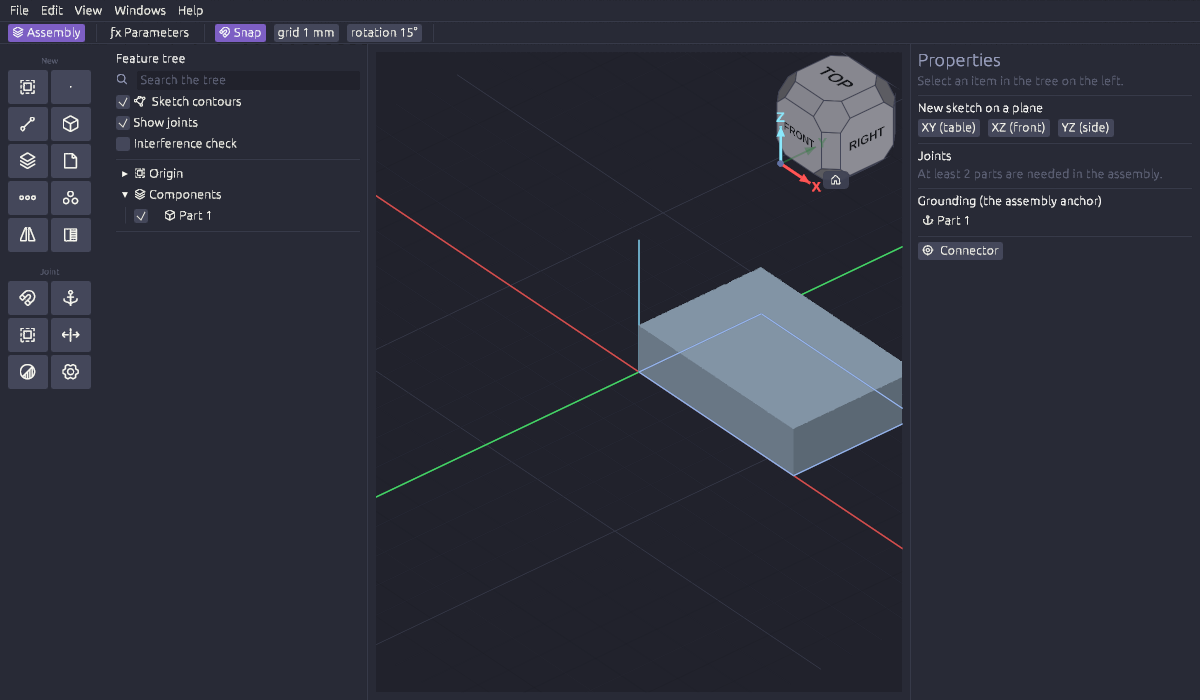
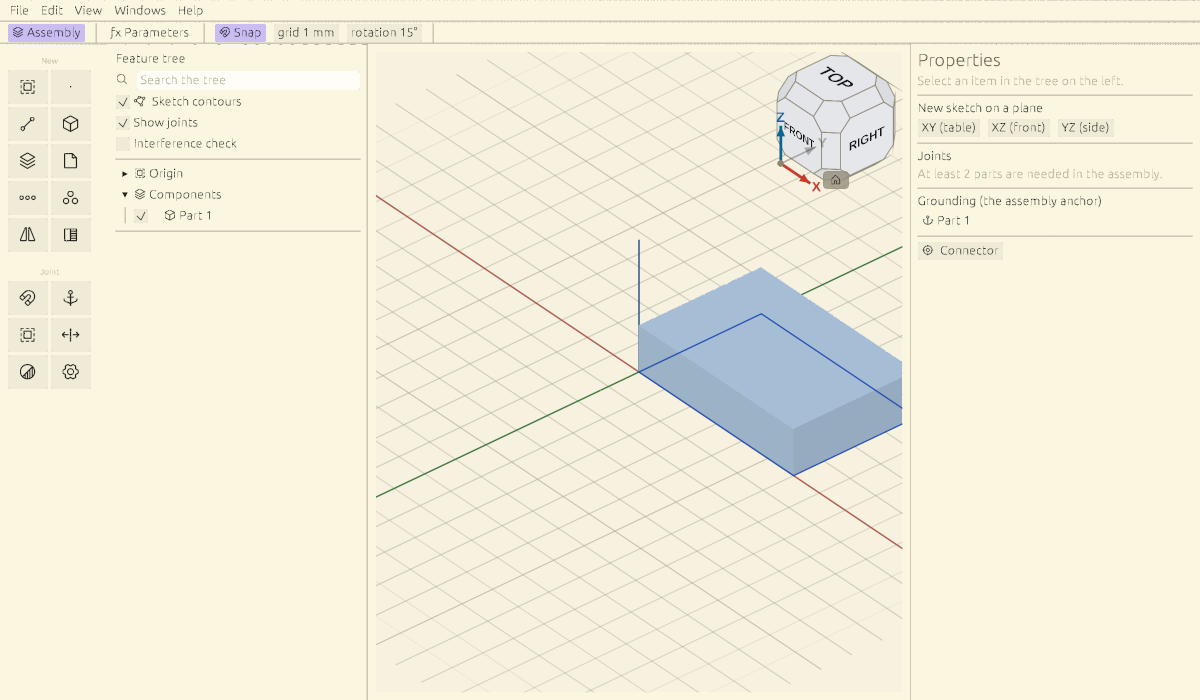
“Make my own copy” creates your scheme next to the selected one and opens the editor. Edits show up live, right on the screen, so a shade can be picked without closing the window. Built-in schemes cannot be edited: you can always come back to them.
In the editor:
- the name and “Rename” — the scheme file moves along with the name;
- is it light — this picks the stock look your colours are laid on top of;
- paint the interface too — while it is off, panels and buttons keep the stock look;
- shading — how dark the darkest face gets, how much a body colour is lifted;
- colours by section — window, grid, sketch, dimensions, selection, bodies, planes, previews, constraints, assembly, outlines, states, view cube, interface.
Your scheme is a file in the settings folder (“Open the folder”). It can be sent as a single file: the file is named after the scheme, so it is recognisable in the folder at a glance.
Where the settings live
The path is shown in the window itself, with an “Open the folder” button next to it. Your colour schemes and document templates live there too — as files you can share.
The settings profile
The whole set is written to a file and read back: move it to another machine, give it to a colleague, attach it to a bug report. A profile from another version of the program still loads — what is missing is taken from the factory values.
What applies at once and what does not
Almost everything applies at once. The single exception is named in the window itself: GPU antialiasing takes effect the next time the program starts.
The panel layout
The Layout section shows a diagram of the window: drag a panel to an edge or onto another panel, press the eye on a panel to hide it, and the window changes at once. There too are the size of the buttons of the bar of tools, its lines, where its buttons stand and its opacity. The buttons of each workbench's bar are arranged in its own section: Sketch, Part, Assembly. More in The layout of the panels.
Only what you moved is remembered; everything else is taken as it comes, so a panel added in a later version turns up in its own place instead of going missing.
If it comes out wrong, press Restore the standard layout and everything goes back.