The layout of the panels
The tree, the properties, the bar of tools, the path at the top and the bar of the command in hand can stand at any edge of the window, one beside another or one under another, and any of them but the bar of the command can be hidden. The menu always stays at the top, the view in the middle and the status line at the bottom; neither the menu nor the status line moves or hides.
Moving a panel
Open Windows -> Settings -> Layout. The section shows a diagram of the window: the menu above, the view in the middle, and at each edge the panels standing there.

- Drag a panel onto another to put it beside that one in the same strip: dropped on the upper half of the tree, the properties stand above it; on the lower half, under it. At a side the panels of a strip stand one under another, at the top and the bottom one beside another.
- Drag a panel onto the line along an edge to give it a strip of its own there.
- The window changes at once. Between two panels of one strip there is a line: drag it to give one more room and the other less. The edge of a strip is dragged the same way.
Hiding a panel
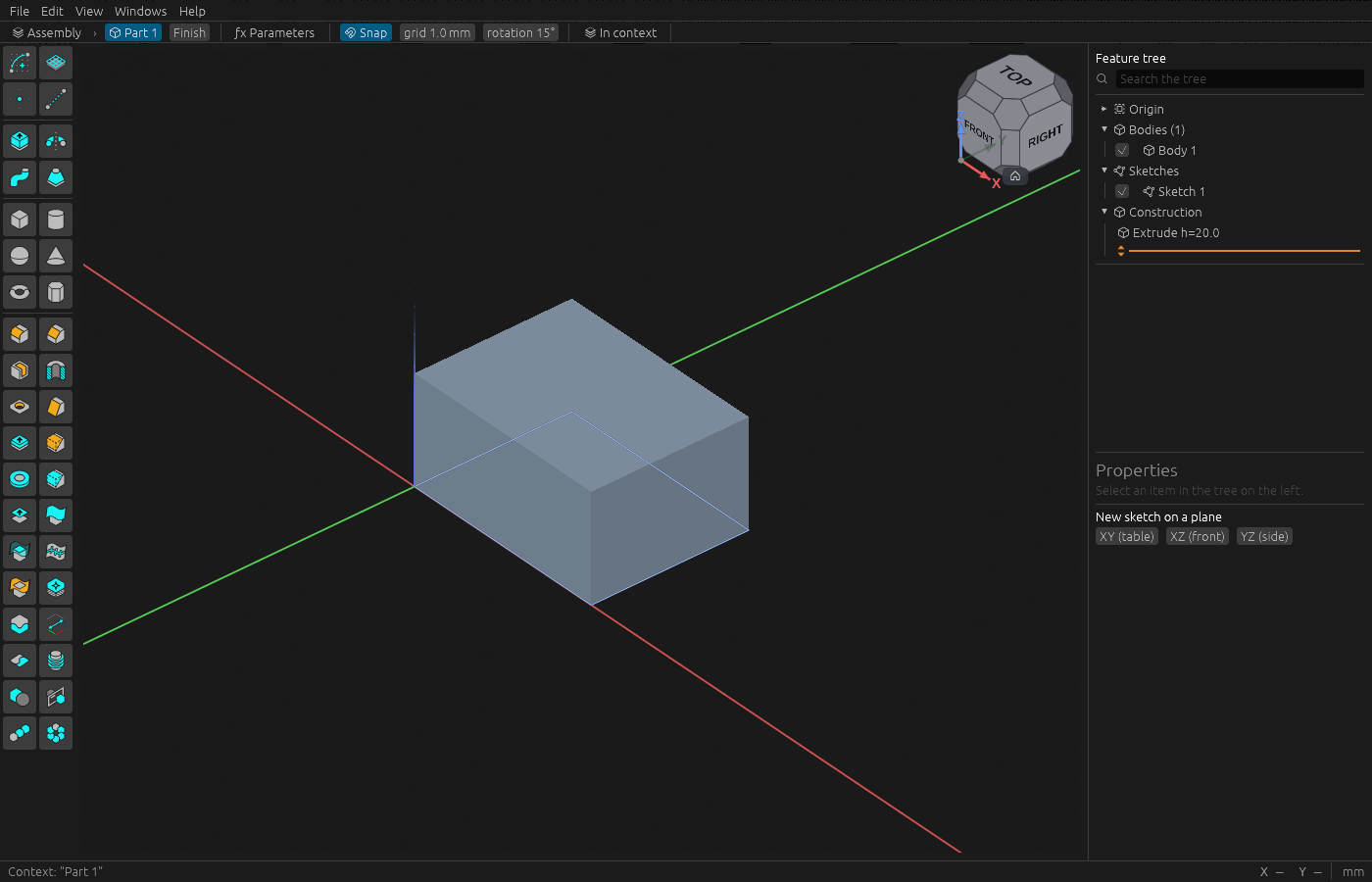
- On the diagram, press the eye on the panel. Pressed again, the panel comes back where it stood.
- Or in the menu View -> Panels: remove the tick from the panel. A hidden panel takes no room.
- The bar of the command in hand is not hidden: without it a tool would wait for something you cannot see. While a sketch is open the tree gives way to its tools by itself — that is not hiding, it comes back when you finish the sketch.
The bar of tools
In Settings -> Layout:
- Size of the buttons — from 20 to 48 points. The icons are drawn for the size and stay sharp.
- Lines of buttons — one or two: columns at a side, rows at the top and the bottom.
- Buttons stand — at the start, in the middle or at the end of the bar.
- Opacity of the bar — from 30 to 100 percent. A bar seen through lies over the model, and the model shows under it. On the diagram a bar at the top or the bottom also has a button over the view: the bar then lies over the model even when it is solid, and the view is not narrowed by it.
- Names of the groups on the bar — the name of each group of buttons is written on the bar: at a side before the group, at the top or the bottom above it. The name of a button is always in its hint.

What does not fit on the bar goes into More at its end; press it and pick the command from the list.
The buttons of a workbench
In Settings -> Sketch, Part or Assembly, press the heading Buttons of the bar: every button of that workbench opens under it, in its order.

- Drag a row up or down to move the button on the bar.
- In "More" takes the button off the bar into the list of More; On the bar puts it back. A command in "More" is still found by the command search and started by its key.
- Restore the standard buttons brings the order and the bar back as they were.
If something went wrong
- A panel is nowhere to be seen: open View -> Panels and tick it.
- The layout is a muddle: press Restore the standard layout in Settings -> Layout.
- The layout and the buttons are kept for the next start.