The parts library
Finished products — motors, boards, profiles, gearboxes — are inserted from the library, not built again in every project.
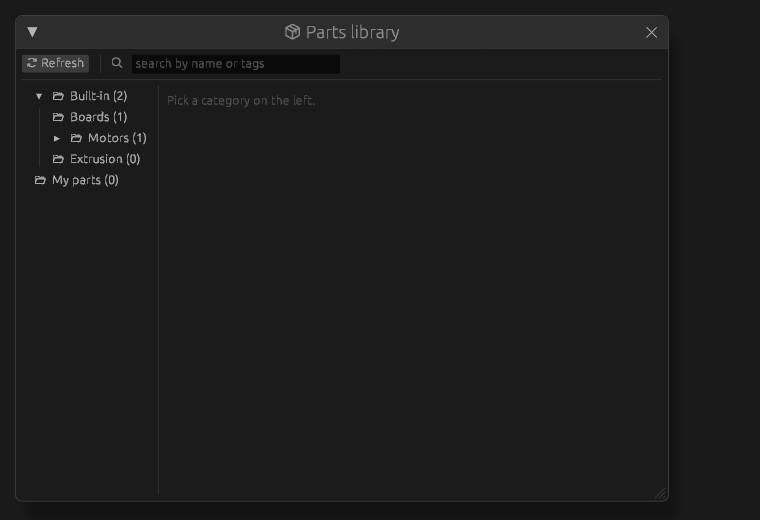
How to insert one
Open Windows -> Parts library (or Parts library on the start screen). Categories are on the left, a search by name and tags at the top. Press Insert at the product you need — it goes into the current assembly. If you are inside a part, there is nowhere to insert it: the program says there is no active assembly — step out to the assembly.
A STEP or STL file from the disk is inserted with the key I ("Insert a component").
Your own products
The right button on a part or a subassembly in the tree — Save as a part…: a name and a category, Save. From then on it stands in the library next to the built-in ones and is inserted the same way. Your products live in the user folder, not in the project: they outlive the project and a reinstall of the program. The project root is not saved as a product — a part or a subassembly is.
A product is an ordinary component
What you insert lives in the assembly like any other part: it is moved, mated, patterned. A copy is brought into the document, so editing the library source does not reach projects already assembled after the fact.
If it did not work
- A product is not inserted and the program says it is missing — its file was renamed or deleted. Rescan the folder in the library window updates the list.
- You pressed Insert and nothing appeared — you are inside a part; step out to the assembly.