Text
Key T.
How to place it
- Press Text and type the string and the height (h.) in the bar above.
- The Font… button opens the font window: search by name, and each font shows whether it holds your letters; From a file... takes a font file from the disk. The button shows the name of the chosen font.
- Click a place on the sheet — the text stands there, and the tool is put down: a stray click places no copy. For another label press Text again. A double-click on the text later opens it for editing.
What you get
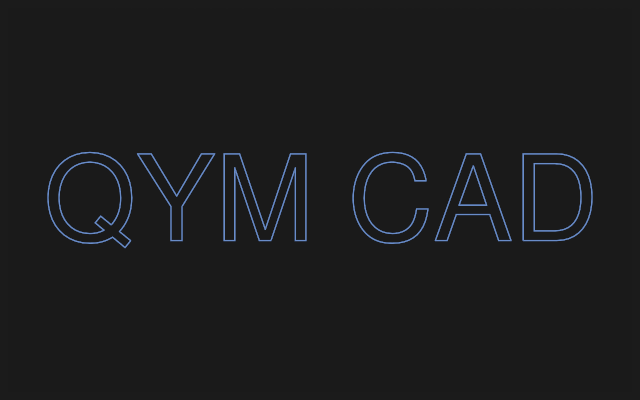
The text becomes letter outlines — ordinary closed curves of the sketch: extrude them as lettering, cut them as an engraving, trace them. The holes in "o", "a", "e" become holes by themselves when extruded.
The note mode places not outlines but a caption on the sheet — an explanation that does not go into the body.
If it did not work
- The text is not placed — the string is empty or only spaces; or the chosen font does not hold these letters (say, Chinese characters): the program says so and does not put boxes in place of letters. Choose a font that holds them.
- Small text with thin bridges cannot be milled: check the height against the tool diameter before engraving.