Split body
Click a plane, a datum or the cutting face, set the offset at the geometry, press Enter. The body falls apart into separate bodies.
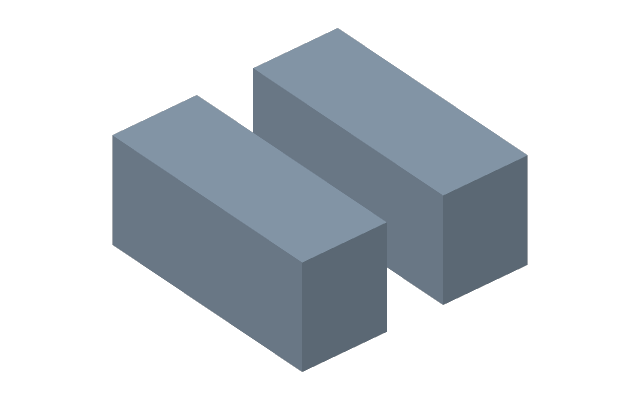
When you need it
- The part does not fit the machine or the printer — it is cut and joined later.
- A housing is split into halves at the parting line.
- Only a portion of the part is needed.
What happens to the timeline
The original body becomes consumed: it is no longer shown, and the pieces stand in its place. Delete the split and the body comes back whole, because the recipe is intact.
The offset
The offset moves the cutting plane away from the picked support, so you can cut not only along the face itself but “five millimetres from it” — and that stays parametric.
Why split a finished body
- A parting line: a housing printed or cast in two halves.
- Different materials or different machining for parts of one shape.
- Cutting off stock, leaving the blank and the part as separate bodies.
What you get
Both pieces stay in the document as independent bodies of one part — rows of the Bodies list in the part's tree. They can be hidden one at a time, exported separately, each given its own continuation in the timeline, and moved into a part of its own with the right button -> Make a part. The original body becomes consumed — it is no longer shown and does not go into exports.
The cutting plane
A base plane, a datum or a face. The offset is a number and takes a formula — so the parting line can follow a dimension of the part instead of staying put.
Do not confuse it with “split faces”
Split faces cuts only the surface and does not divide the body: it stays one, there are simply more faces.